
This article describes how to set up and verify a connection between Lupasafe notifications and the Autotask Ticket environment. It allows for the generation of tickets in Autotask from certain type of notifications generated by Lupasafe (see below).
Steps to create an API user in Autotask
Log in to Autotask at https://www.autotask.net.
Navigate to Admin → Account Settings & Users.
Expand Resources/Users (HR).
Select Resources/Users and click New API User.
Complete the required details for the new API user.
Setting up the Connection with Lupasafe
Navigate to the Integration Pannel
Navigate in the side-bar to IT Management -> Integrations
Scroll to the bottom of the page
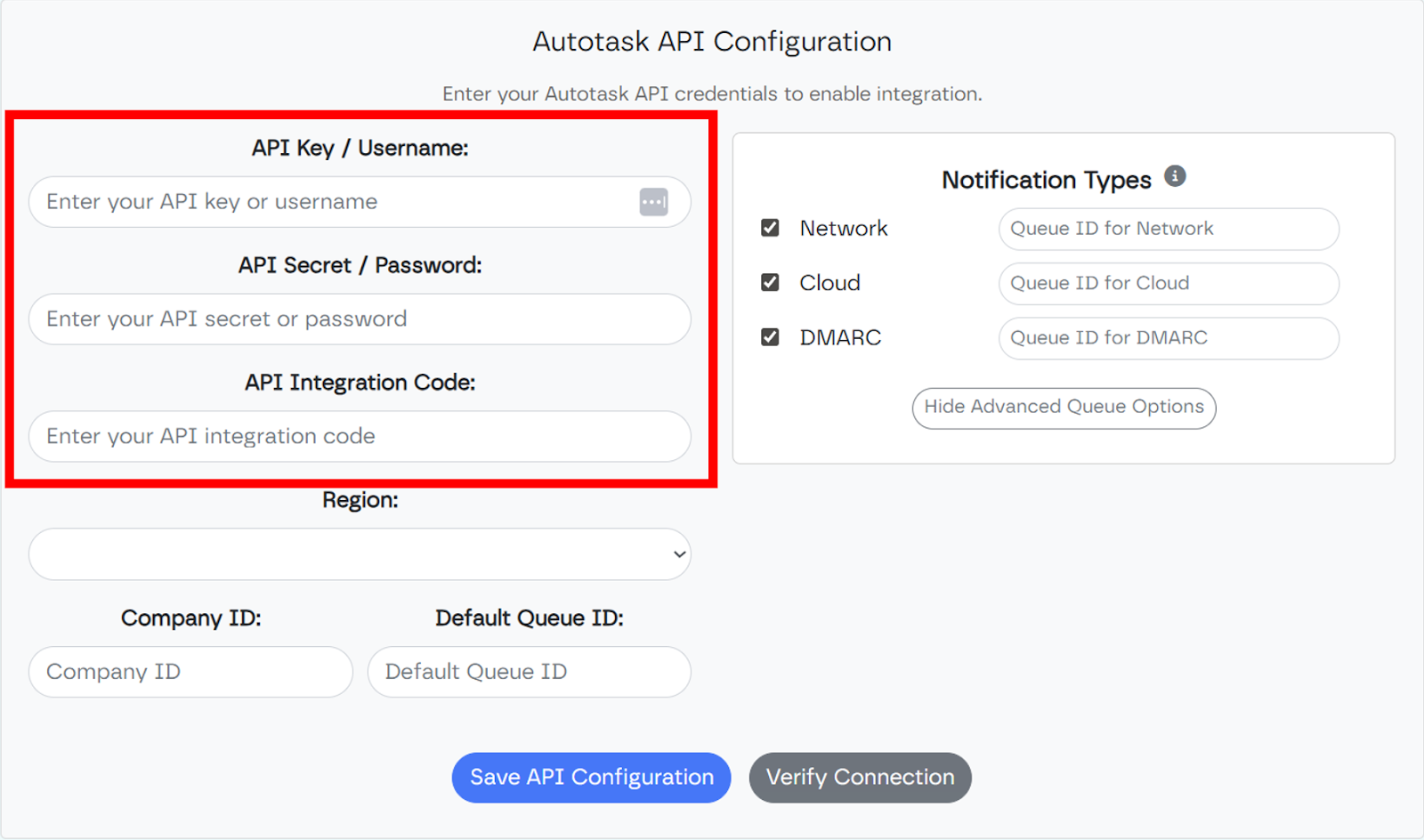
Credentials
Enter the obtained API Key/Username, API Secret/Password, and API Integration Code in the corresponding fields.Region selection
Select the region where your Autotask instance is deployed.
A list of API zones can be found here: https://www.autotask.net/help/developerhelp/Content/APIs/General/API_Zones.htm.
Company Identification
Provide the CompanyID in the designated field.
Ensure this value matches the CompanyID in Autotask for the client monitored by Lupasafe.
Queue Configuration
Specify the Default Queue ID, which represents the queue in your Autotask environment where tickets will be created by default.
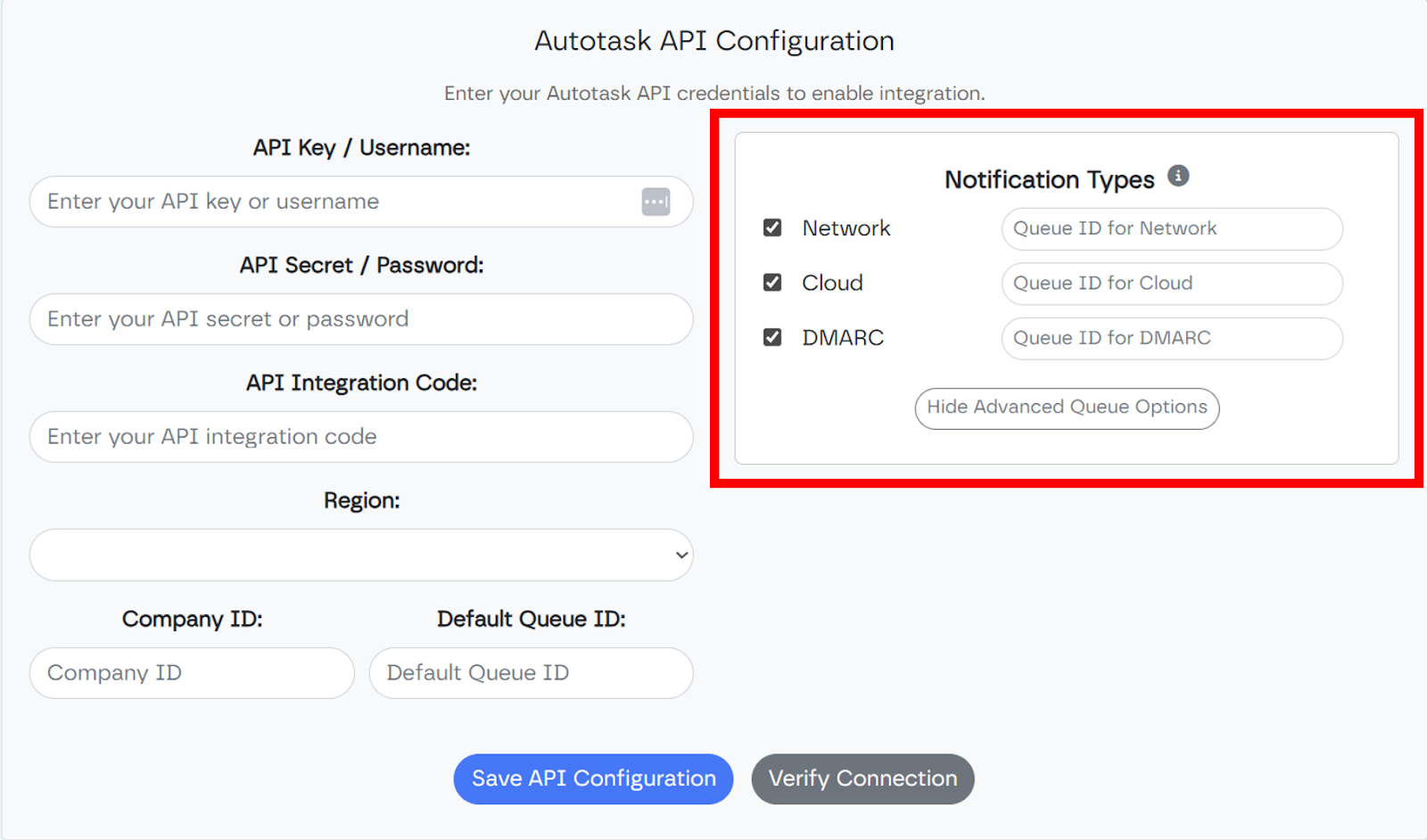
Additional Queue IDs can be assigned per notification type by selecting Show Advanced Queue Options.
This allows each notification type to be mapped to a specific queue.
Notification Types
Select the notification types for which you want tickets to be generated in Autotask.Saving and Testing Settings
The connection with the Autotask servers can now be verified by pressing the “Verify Connection” button, or directly be saved by pressing the “Save API Configuration” button.
Notification Types
Network: Enable to receive notifications when network scanner agents become inactive.
Cloud: Enable to receive notifications related to multi‑factor authentication coverage.
DMARC: Enable to trigger notifications if a significant number of emails fail DMARC/DKIM checks.
Each notification type can be enabled by selecting its checkbox. If Advanced Queue Options are enabled, a specific Queue ID may be assigned to each notification type, allowing tickets to be routed to different queues based on the type of alert.